

What customers see
After you enable the customer account extension, a Manage Subscriptions navigation item appears in the customer account menu. Customers can:- View all their active subscriptions
- See upcoming order dates and billing information
- Pause or resume subscriptions (if enabled)
- Cancel subscriptions (if enabled)
- Update payment methods
- Change delivery frequency
- Swap or edit products
Setup steps
1
Install Appfox Subscriptions
Make sure you’ve installed Appfox Subscriptions from the Shopify App Store. If you haven’t, visit the Shopify App Store to install the app.
2
Enable the Manage Subscriptions extension
In your Shopify admin:
- Go to Settings → Customer accounts
- Under Customer account extensions, find Appfox Subscriptions - Manage Subscriptions
- Click Add or toggle it on
3
Optional: Enable the Order Status block
To let customers manage subscriptions from the order status page:
- In Shopify admin, go to Settings → Checkout
- Navigate to the Order status section
- Find the Appfox Subscriptions block
- Add it to the order status page template
4
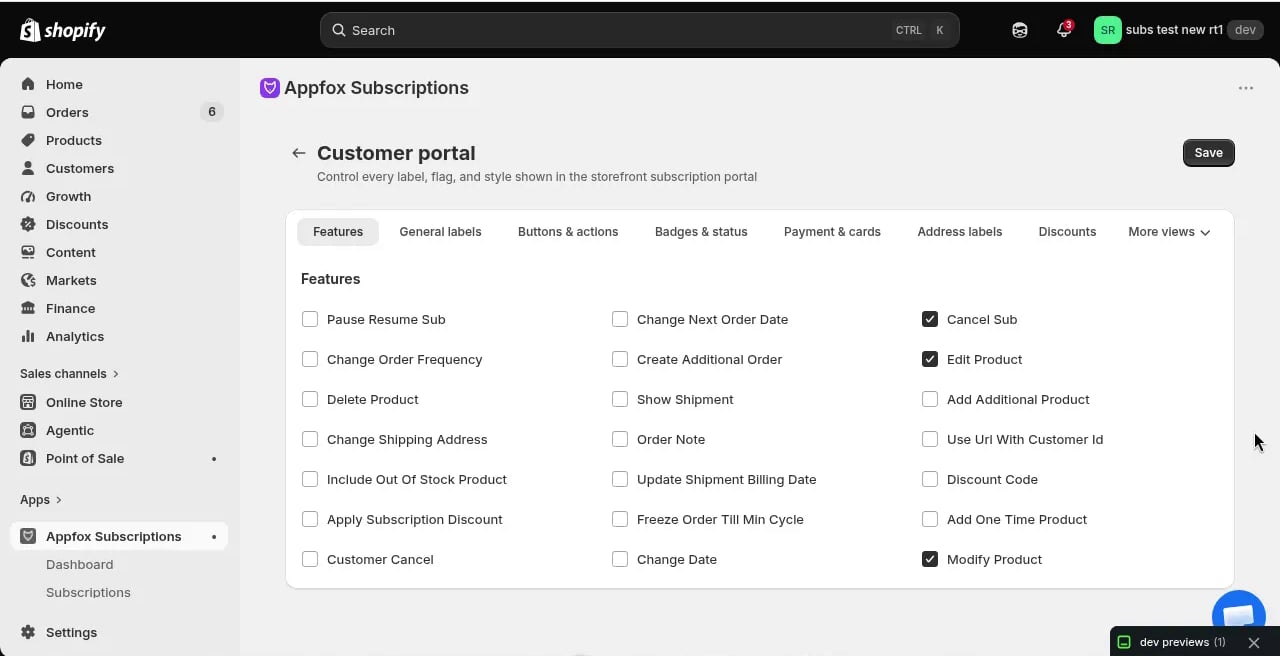
Configure customer portal features
In Appfox:
- Click Storefront in the app navigation
- Click Customer portal
- On the Features tab, toggle the features you want to enable:
- Pause Resume Sub — Let customers pause and resume subscriptions
- Cancel Sub — Allow customers to cancel subscriptions
- Change Order Frequency — Let customers adjust billing frequency
- Change Next Order Date — Allow customers to reschedule their next order
- Edit Product — Let customers modify product details or quantities
- Modify Product — Let customers swap products
- Update Shipment Billing Date — Allow customers to update shipment billing dates
- Discount Code — Let customers apply discount codes
- And more
- Click Save
How customers access it
Once enabled, customers find the Manage Subscriptions page by:- Logging into their customer account on your store
- Clicking Manage Subscriptions in the account navigation menu
- Viewing and managing all their subscription contracts
Customizing the portal
You can customize the customer portal appearance and wording in Appfox:- Features tab: Enable or disable specific actions
- Button actions tab: Configure button labels and behaviors
- Images & colors tab: Match the portal to your brand colors and add custom images
- Layout & wording tab: Adjust text and layout options
Troubleshooting
The Manage Subscriptions menu item doesn’t appear
- Verify the extension is enabled in Settings → Customer accounts in Shopify admin
- Make sure the customer has at least one active subscription
- Ask the customer to log out and log back in
Customers can’t perform certain actions
- Check the Features tab in Customer portal settings — disabled features won’t appear
- If a plan has Minimum cycles before customer cancel set, customers cannot cancel until they’ve completed that many billing cycles
Changes don’t save
- Click Save in the Customer portal settings page after making changes
- Refresh the customer account page to see updated settings
The customer portal is a Shopify customer account UI extension, not a standalone URL. It only appears when customers log into their customer account on your store.
Related resources
- Customer portal settings — Detailed guide to all available features and configuration options
- Subscriptions — Learn about managing subscription contracts in the Appfox dashboard
Need help? Contact support@getappfox.com.