

Create a plan
1
Go to Plans
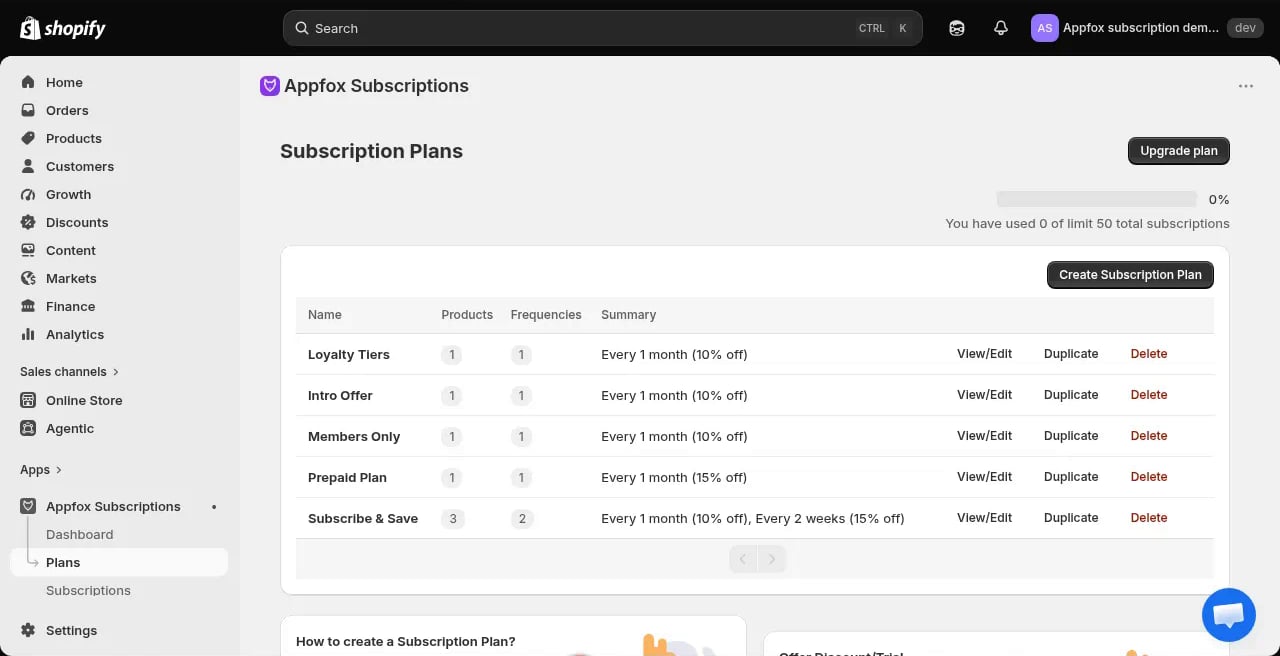
Click Plans in the app navigation, then click Create Subscription Plan.
2
Name your plan
Give the plan a customer-facing name. This appears in the widget on product pages.
3
Add products
Select which products are available on this plan. You can add individual products or entire collections.
4
Set the frequency
Choose how often customers are billed. Common options include every 1 month, every 2 weeks, or every 3 months. You can configure multiple frequency options for a single plan.
5
Configure the discount
Set a percentage or fixed-amount discount for recurring orders. The discount applies to every billing cycle.
Plan settings
Frequency and schedule
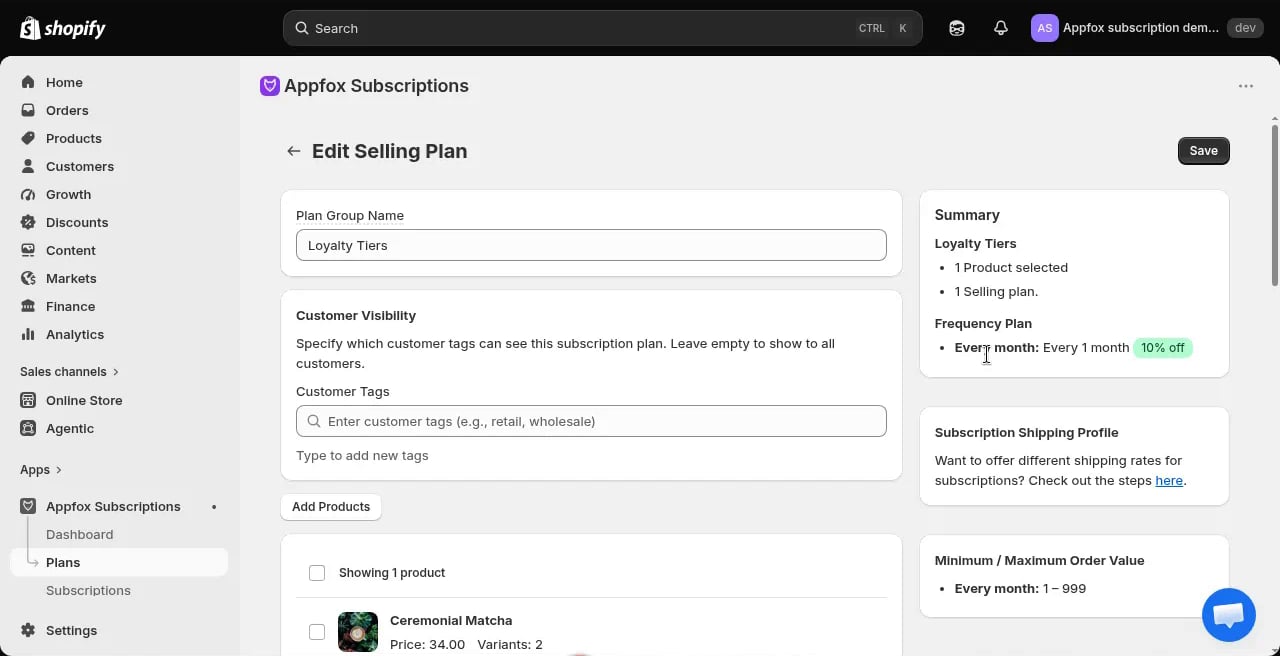
You can offer one or more billing frequencies per plan. Customers choose their preferred frequency when they subscribe. The billing date is set when the customer places their first order. Each subsequent billing happens on the same day of the interval you configured.Discount types
- Percentage discount: Take 10%, 20%, or any percentage off each order
- Fixed amount discount: Reduce each order by a dollar amount
Intro pricing
Intro pricing lets you offer a time-limited discount on the first few billing cycles. Configure it in the Discount section.- Intro discount amount: The reduced price or percentage for the introductory period
- Duration: How many billing cycles the intro pricing lasts
Intro pricing is not a free trial. Customers are charged at the intro rate starting with the first order.
Loyalty tiers
You can configure up to two loyalty tiers per plan. Each tier grants an additional discount after the customer has been subscribed for a set number of billing cycles. For example, you might offer:- 10% off for all subscribers
- An extra 5% off after 6 billing cycles
- An extra 10% off after 12 billing cycles
Advanced settings
Minimum number of orders
Set a minimum commitment for the subscription. Customers must complete at least this many billing cycles before they can cancel.Minimum cycles before customer cancel
Set a plan-level cancellation guard. Customers cannot cancel until they’ve completed this many billing cycles, even if they want to. This is separate from the minimum commitment above — use it when you need to enforce a specific retention period for this plan. This setting applies only to customer-initiated cancellations in the customer portal. Merchants can always cancel through the admin, and the Enterprise contract API is not blocked by this setting.If both minimum settings are configured, the plan-level “Minimum cycles before customer cancel” takes precedence over the contract-level minimum commitment.
Change on specific days
Configure the billing schedule to only charge on certain days of the week or month. This is useful if your fulfillment runs on a fixed schedule.Subscription cutoff day
Choose when in the billing cycle customers can no longer make changes. This helps you prepare orders for fulfillment without last-minute edits.Manage plans
You can view, edit, duplicate, or delete plans from the Plans page.Price grandfathering
When you change a plan’s price, the change only affects new subscriptions. Existing customers stay at their original price — Shopify snapshots the price when the contract is created and does not automatically update it when you edit the plan. This behavior is called “price grandfathering” and protects existing customers from unexpected price increases. Example: You have a plan priced at €80/month with 100 active subscriptions. If you raise the price to €88/month:- New customers who subscribe pay €88/month
- Existing customers continue paying €80/month