

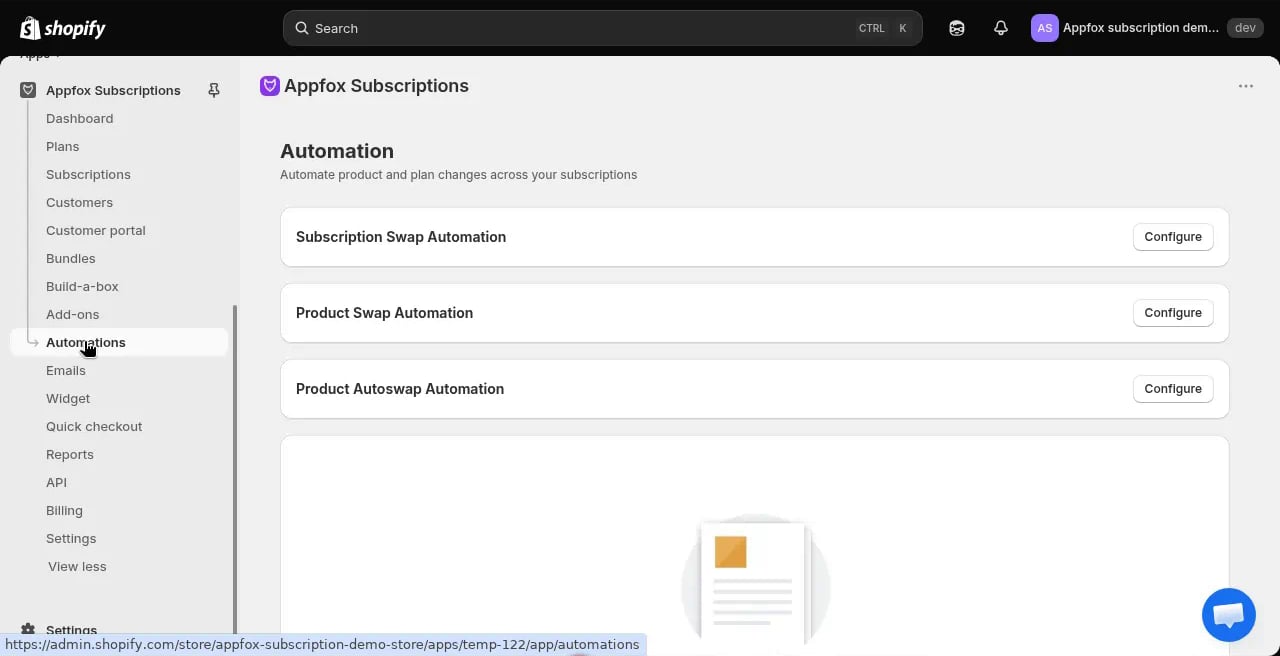
Automation types
Subscription swap automation
Automatically move customers from one subscription plan to another based on conditions you set. For example, you might upgrade customers to a loyalty plan after they’ve been subscribed for six months.Product swap automation
Automatically replace a product in a customer’s subscription with a different product. For example, you might swap out a summer product for a fall product when the season changes.Product add/remove automation
Automatically add or remove products from subscriptions based on conditions. For example, you might add a bonus product after a customer has been subscribed for a certain number of billing cycles.Create an automation
1
Go to Automations
Click Automations in the app navigation, then click Configure next to the automation type you want to create.
2
Define the conditions
Set the rules that trigger the automation. Common conditions include:
- Number of billing cycles completed
- Subscription creation date
- Specific products in the subscription
- Customer tags
3
Set the action
Choose what happens when the conditions are met:
- Swap to a different plan
- Replace a product with another product
- Add or remove a product
4
Save the automation
Click Save to activate the automation. It will run on the next daily automation job.
How automations run
Automations run once per day on a scheduled job. The job checks all active subscriptions against your automation rules and applies any matching actions. Changes made by automations take effect on the next billing cycle. Customers are not charged immediately when an automation runs.Automations are not instant. They run on a daily schedule, so there may be a delay between when a condition is met and when the action is applied.