> ## Documentation Index
> Fetch the complete documentation index at: https://subscriptions-docs.getappfox.com/llms.txt
> Use this file to discover all available pages before exploring further.
# Product page widget
> Configure the subscription widget for product pages
The subscription widget displays subscription options on product pages. It shows available plans, billing frequencies, and discounts to customers browsing your store.
 ## Enable the widget
Click **Widget** in the app navigation.
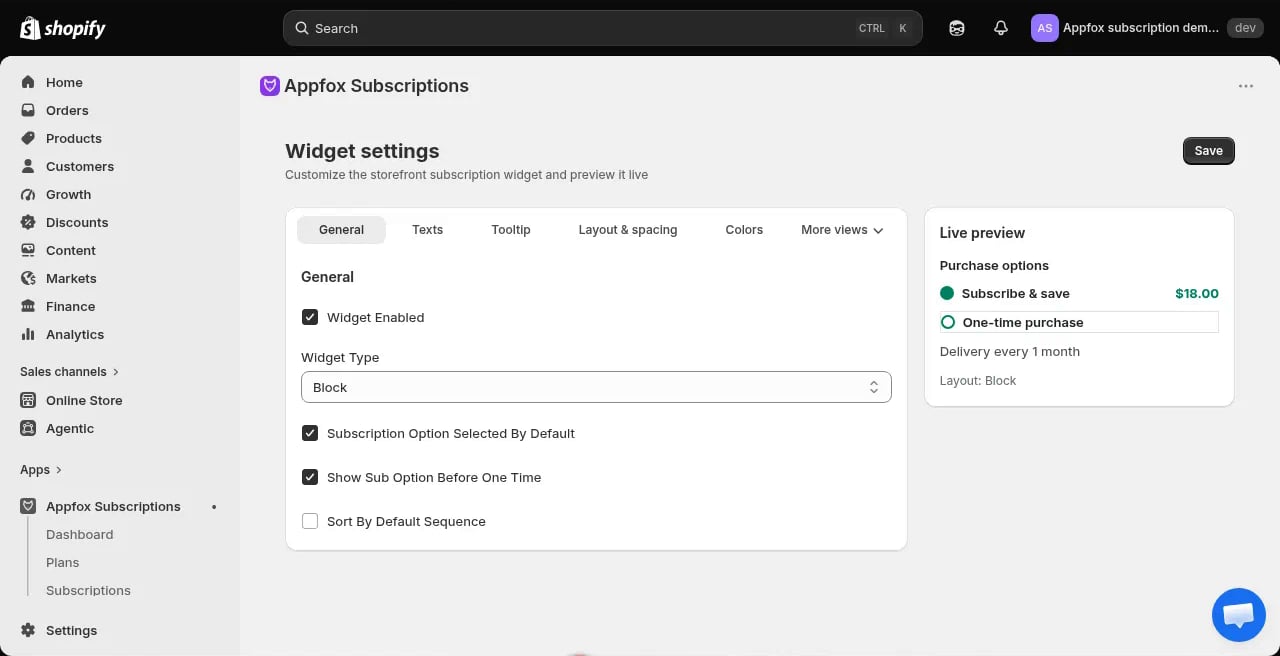
Select a design from the **General** tab. The preview on the right updates as you make changes.
Open the Shopify theme editor and navigate to a product page template.
In the theme editor sidebar, click **Add block** and search for **Subscription Widget**. Drag it to your preferred position on the product page.
Click **Save** in the theme editor. The widget now appears on any product that has an active subscription plan.
## Widget settings
### General settings
* **Widget type**: Choose between radio buttons, a dropdown, or a block-style layout
* **Show subscription options by default**: Pre-select the subscription option when the page loads
* **One-time purchase option**: Let customers choose between one-time and subscription purchase
### Colors and styling
Customize the widget appearance to match your store branding. You can configure:
* Button colors
* Text colors
* Border styles
* Discount badge appearance
Changes appear immediately in the live preview.
### Discount display
Control how discounts are shown:
* Show percentage discount
* Show dollar amount saved
* Hide discount information
## Live preview
The preview on the right side of the widget settings page shows what customers see on your product pages. It updates in real time as you adjust settings.
Use the preview to test different configurations before publishing changes.
The widget only displays on products that are included in at least one active subscription plan. If a product has no plans, the widget won't appear.
## How the widget appears on your storefront
Once enabled, the widget displays on product pages with subscription options.
### Standard subscription discount
## Enable the widget
Click **Widget** in the app navigation.
Select a design from the **General** tab. The preview on the right updates as you make changes.
Open the Shopify theme editor and navigate to a product page template.
In the theme editor sidebar, click **Add block** and search for **Subscription Widget**. Drag it to your preferred position on the product page.
Click **Save** in the theme editor. The widget now appears on any product that has an active subscription plan.
## Widget settings
### General settings
* **Widget type**: Choose between radio buttons, a dropdown, or a block-style layout
* **Show subscription options by default**: Pre-select the subscription option when the page loads
* **One-time purchase option**: Let customers choose between one-time and subscription purchase
### Colors and styling
Customize the widget appearance to match your store branding. You can configure:
* Button colors
* Text colors
* Border styles
* Discount badge appearance
Changes appear immediately in the live preview.
### Discount display
Control how discounts are shown:
* Show percentage discount
* Show dollar amount saved
* Hide discount information
## Live preview
The preview on the right side of the widget settings page shows what customers see on your product pages. It updates in real time as you adjust settings.
Use the preview to test different configurations before publishing changes.
The widget only displays on products that are included in at least one active subscription plan. If a product has no plans, the widget won't appear.
## How the widget appears on your storefront
Once enabled, the widget displays on product pages with subscription options.
### Standard subscription discount
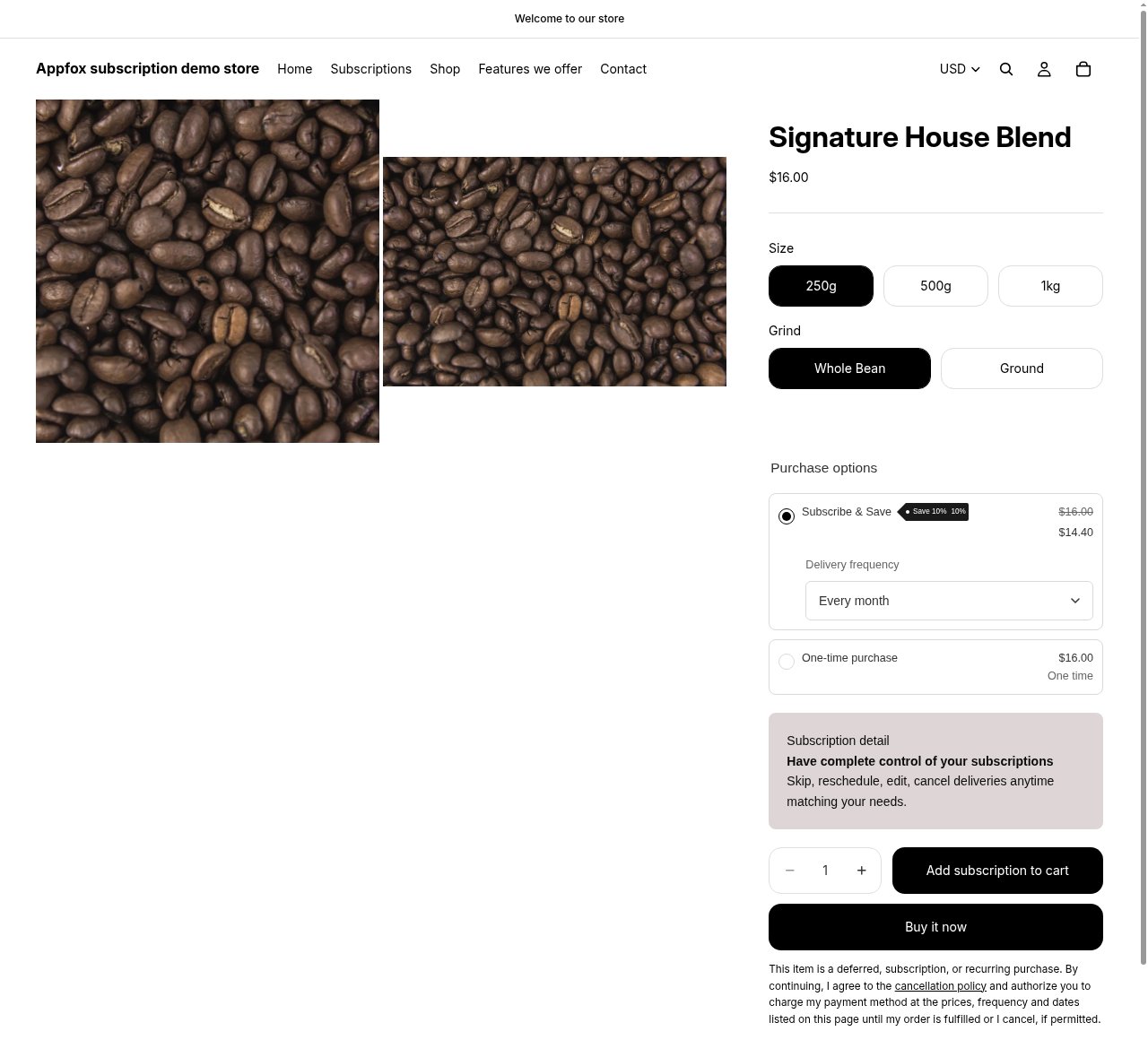 The widget shows the subscription option with the discount badge and savings. In this example, the **Subscribe & Save** option displays:
* Save 10% badge
* Original price ($16.00) and discounted price ($14.40)
* Delivery frequency dropdown
* One-time purchase alternative
Customers can choose their delivery frequency and add the subscription to their cart.
### Intro pricing example
The widget shows the subscription option with the discount badge and savings. In this example, the **Subscribe & Save** option displays:
* Save 10% badge
* Original price ($16.00) and discounted price ($14.40)
* Delivery frequency dropdown
* One-time purchase alternative
Customers can choose their delivery frequency and add the subscription to their cart.
### Intro pricing example
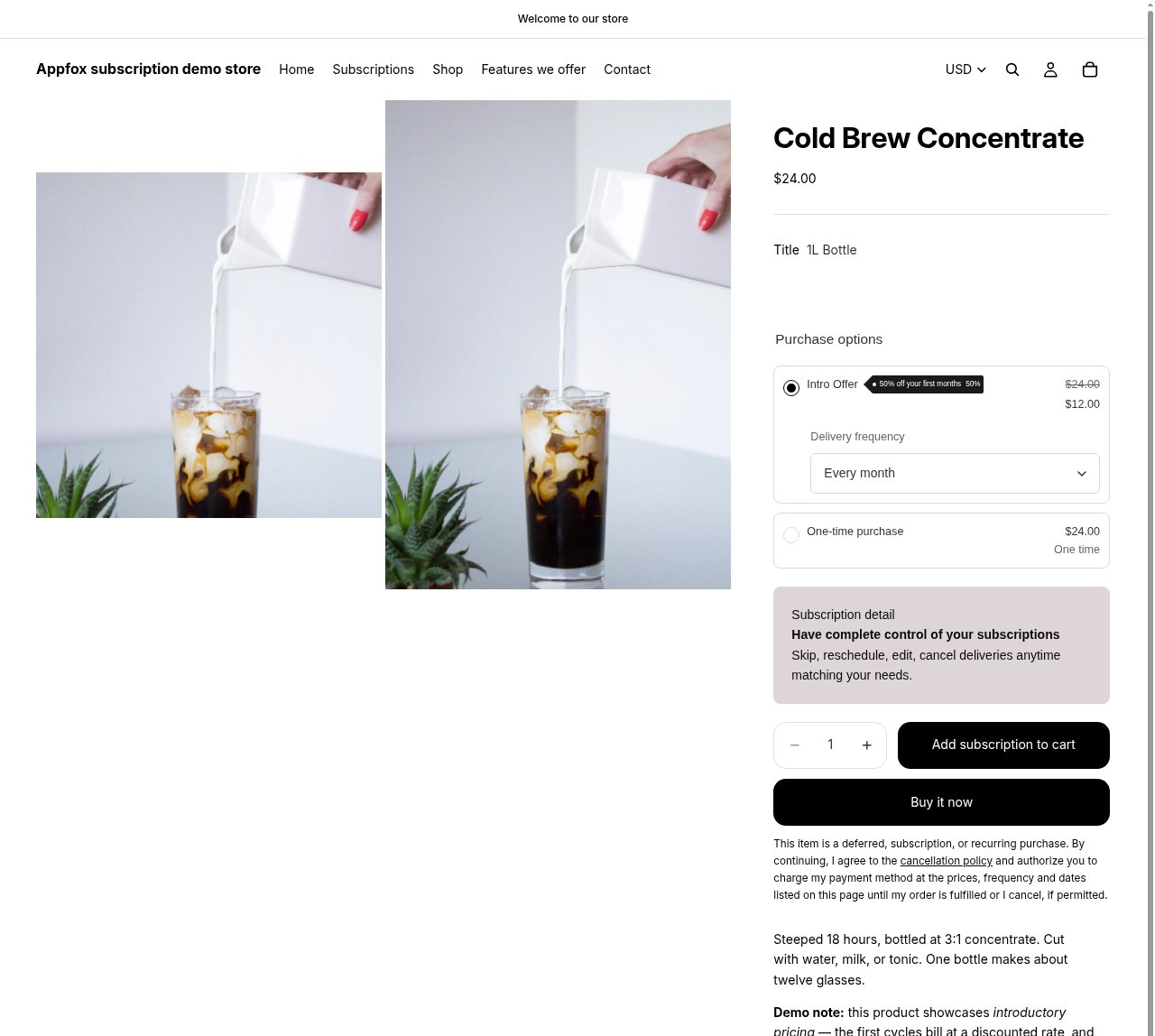 When you configure intro pricing on a plan, the widget highlights the introductory discount. This example shows:
* **50% off your first months** badge
* Intro price ($12.00) reduced from standard subscription price ($24.00)
* Delivery frequency selection
After the intro period expires, the subscription reverts to the standard discount rate.
Intro pricing is not a free trial. Customers are charged at the intro rate starting with their first order.
## Widget behavior
When a customer selects a subscription option and adds the product to their cart, Shopify handles the checkout flow. The customer completes payment, and Shopify creates a subscription contract.
The app takes over after the first order is placed and manages recurring billing based on the plan schedule.
## Customer subscription management
Customers can manage their subscriptions through the customer portal. Depending on which features you enable in the portal settings, they can:
* Pause and resume their subscription
* Change the next billing date
* Update products or quantities
* Cancel the subscription
See the [Customer portal](/storefront/customer-portal) documentation for details on portal features.
Preview your widget on different devices. The widget is responsive and adapts to mobile, tablet, and desktop screens.
When you configure intro pricing on a plan, the widget highlights the introductory discount. This example shows:
* **50% off your first months** badge
* Intro price ($12.00) reduced from standard subscription price ($24.00)
* Delivery frequency selection
After the intro period expires, the subscription reverts to the standard discount rate.
Intro pricing is not a free trial. Customers are charged at the intro rate starting with their first order.
## Widget behavior
When a customer selects a subscription option and adds the product to their cart, Shopify handles the checkout flow. The customer completes payment, and Shopify creates a subscription contract.
The app takes over after the first order is placed and manages recurring billing based on the plan schedule.
## Customer subscription management
Customers can manage their subscriptions through the customer portal. Depending on which features you enable in the portal settings, they can:
* Pause and resume their subscription
* Change the next billing date
* Update products or quantities
* Cancel the subscription
See the [Customer portal](/storefront/customer-portal) documentation for details on portal features.
Preview your widget on different devices. The widget is responsive and adapts to mobile, tablet, and desktop screens.