> ## Documentation Index
> Fetch the complete documentation index at: https://subscriptions-docs.getappfox.com/llms.txt
> Use this file to discover all available pages before exploring further.
# Add Manage Subscriptions to customer accounts
> Enable the Manage Subscriptions page in Shopify customer accounts
The **Manage Subscriptions** page lets your customers view and manage their subscriptions directly in their Shopify customer account. Customers can pause, cancel, update payment, change frequency, and make other changes based on the features you enable.
 ## What customers see
After you enable the customer account extension, a **Manage Subscriptions** navigation item appears in the customer account menu. Customers can:
* View all their active subscriptions
* See upcoming order dates and billing information
* Pause or resume subscriptions (if enabled)
* Cancel subscriptions (if enabled)
* Update payment methods
* Change delivery frequency
* Swap or edit products
The specific actions available depend on which features you enable in the **Customer portal** settings.
## Setup steps
Make sure you've installed Appfox Subscriptions from the Shopify App Store. If you haven't, visit the [Shopify App Store](https://apps.shopify.com/appfox-new) to install the app.
In your Shopify admin:
1. Go to **Settings** → **Customer accounts**
2. Under **Customer account extensions**, find **Appfox Subscriptions - Manage Subscriptions**
3. Click **Add** or toggle it on
The extension is now active and will appear in customer account navigation.
To let customers manage subscriptions from the order status page:
1. In Shopify admin, go to **Settings** → **Checkout**
2. Navigate to the **Order status** section
3. Find the **Appfox Subscriptions** block
4. Add it to the order status page template
This displays a **Manage Subscription** button on order confirmation pages for subscription orders.
In Appfox:
1. Click **Storefront** in the app navigation
2. Click **Customer portal**
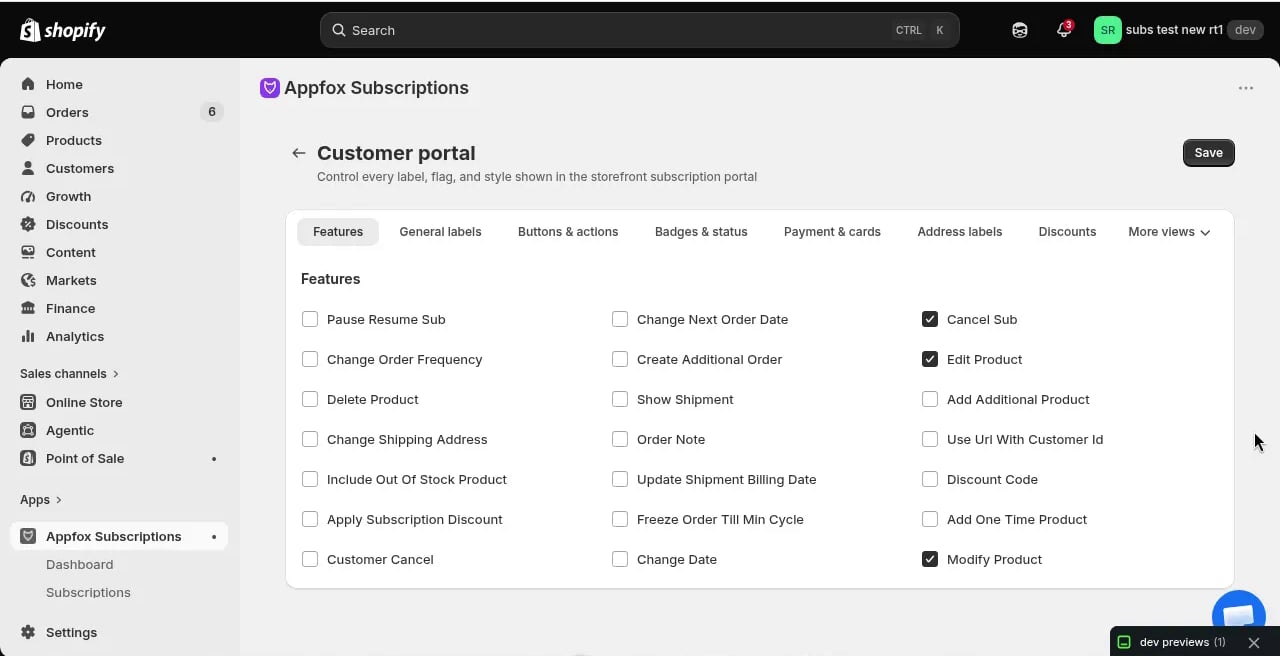
3. On the **Features** tab, toggle the features you want to enable:
* **Pause Resume Sub** — Let customers pause and resume subscriptions
* **Cancel Sub** — Allow customers to cancel subscriptions
* **Change Order Frequency** — Let customers adjust billing frequency
* **Change Next Order Date** — Allow customers to reschedule their next order
* **Edit Product** — Let customers modify product details or quantities
* **Modify Product** — Let customers swap products
* **Update Shipment Billing Date** — Allow customers to update shipment billing dates
* **Discount Code** — Let customers apply discount codes
* And more
4. Click **Save**
For detailed feature descriptions, see [Customer portal](/storefront/customer-portal).
## How customers access it
Once enabled, customers find the **Manage Subscriptions** page by:
1. Logging into their customer account on your store
2. Clicking **Manage Subscriptions** in the account navigation menu
3. Viewing and managing all their subscription contracts
Customers can also reach it from the order status page if you added the Order Status block extension.
Place a link to the customer account login page in your store footer or header so customers can easily access their subscriptions.
## Customizing the portal
You can customize the customer portal appearance and wording in Appfox:
* **Features tab**: Enable or disable specific actions
* **Button actions tab**: Configure button labels and behaviors
* **Images & colors tab**: Match the portal to your brand colors and add custom images
* **Layout & wording tab**: Adjust text and layout options
All changes take effect immediately after you save.
## Troubleshooting
### The Manage Subscriptions menu item doesn't appear
* Verify the extension is enabled in **Settings** → **Customer accounts** in Shopify admin
* Make sure the customer has at least one active subscription
* Ask the customer to log out and log back in
### Customers can't perform certain actions
* Check the **Features** tab in **Customer portal** settings — disabled features won't appear
* If a plan has **Minimum cycles before customer cancel** set, customers cannot cancel until they've completed that many billing cycles
### Changes don't save
* Click **Save** in the Customer portal settings page after making changes
* Refresh the customer account page to see updated settings
The customer portal is a Shopify customer account UI extension, not a standalone URL. It only appears when customers log into their customer account on your store.
## Related resources
* [Customer portal settings](/storefront/customer-portal) — Detailed guide to all available features and configuration options
* [Subscriptions](/subscriptions) — Learn about managing subscription contracts in the Appfox dashboard
***
Need help? Contact [support@getappfox.com](mailto:support@getappfox.com).
## What customers see
After you enable the customer account extension, a **Manage Subscriptions** navigation item appears in the customer account menu. Customers can:
* View all their active subscriptions
* See upcoming order dates and billing information
* Pause or resume subscriptions (if enabled)
* Cancel subscriptions (if enabled)
* Update payment methods
* Change delivery frequency
* Swap or edit products
The specific actions available depend on which features you enable in the **Customer portal** settings.
## Setup steps
Make sure you've installed Appfox Subscriptions from the Shopify App Store. If you haven't, visit the [Shopify App Store](https://apps.shopify.com/appfox-new) to install the app.
In your Shopify admin:
1. Go to **Settings** → **Customer accounts**
2. Under **Customer account extensions**, find **Appfox Subscriptions - Manage Subscriptions**
3. Click **Add** or toggle it on
The extension is now active and will appear in customer account navigation.
To let customers manage subscriptions from the order status page:
1. In Shopify admin, go to **Settings** → **Checkout**
2. Navigate to the **Order status** section
3. Find the **Appfox Subscriptions** block
4. Add it to the order status page template
This displays a **Manage Subscription** button on order confirmation pages for subscription orders.
In Appfox:
1. Click **Storefront** in the app navigation
2. Click **Customer portal**
3. On the **Features** tab, toggle the features you want to enable:
* **Pause Resume Sub** — Let customers pause and resume subscriptions
* **Cancel Sub** — Allow customers to cancel subscriptions
* **Change Order Frequency** — Let customers adjust billing frequency
* **Change Next Order Date** — Allow customers to reschedule their next order
* **Edit Product** — Let customers modify product details or quantities
* **Modify Product** — Let customers swap products
* **Update Shipment Billing Date** — Allow customers to update shipment billing dates
* **Discount Code** — Let customers apply discount codes
* And more
4. Click **Save**
For detailed feature descriptions, see [Customer portal](/storefront/customer-portal).
## How customers access it
Once enabled, customers find the **Manage Subscriptions** page by:
1. Logging into their customer account on your store
2. Clicking **Manage Subscriptions** in the account navigation menu
3. Viewing and managing all their subscription contracts
Customers can also reach it from the order status page if you added the Order Status block extension.
Place a link to the customer account login page in your store footer or header so customers can easily access their subscriptions.
## Customizing the portal
You can customize the customer portal appearance and wording in Appfox:
* **Features tab**: Enable or disable specific actions
* **Button actions tab**: Configure button labels and behaviors
* **Images & colors tab**: Match the portal to your brand colors and add custom images
* **Layout & wording tab**: Adjust text and layout options
All changes take effect immediately after you save.
## Troubleshooting
### The Manage Subscriptions menu item doesn't appear
* Verify the extension is enabled in **Settings** → **Customer accounts** in Shopify admin
* Make sure the customer has at least one active subscription
* Ask the customer to log out and log back in
### Customers can't perform certain actions
* Check the **Features** tab in **Customer portal** settings — disabled features won't appear
* If a plan has **Minimum cycles before customer cancel** set, customers cannot cancel until they've completed that many billing cycles
### Changes don't save
* Click **Save** in the Customer portal settings page after making changes
* Refresh the customer account page to see updated settings
The customer portal is a Shopify customer account UI extension, not a standalone URL. It only appears when customers log into their customer account on your store.
## Related resources
* [Customer portal settings](/storefront/customer-portal) — Detailed guide to all available features and configuration options
* [Subscriptions](/subscriptions) — Learn about managing subscription contracts in the Appfox dashboard
***
Need help? Contact [support@getappfox.com](mailto:support@getappfox.com).