> ## Documentation Index
> Fetch the complete documentation index at: https://subscriptions-docs.getappfox.com/llms.txt
> Use this file to discover all available pages before exploring further.
# Getting started
> Install Appfox Subscriptions and complete the setup
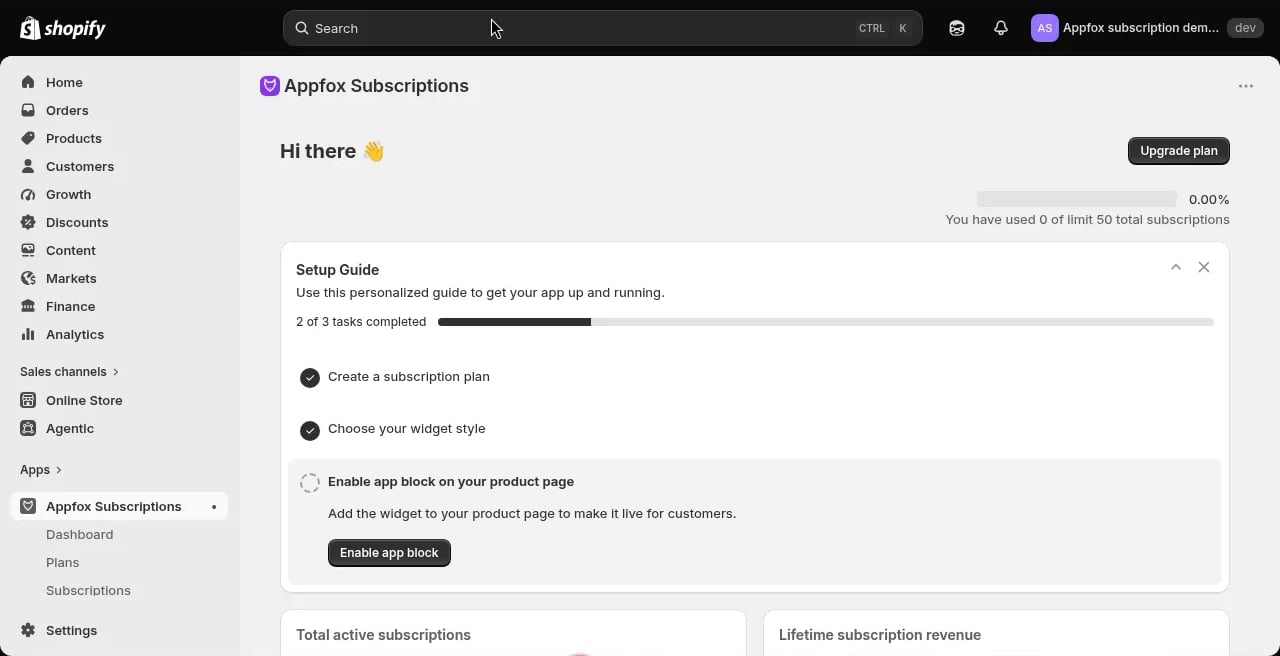
After you install Appfox Subscriptions from the Shopify App Store, you'll see a setup guide on the home screen. Complete these three tasks to start accepting subscription orders.
 ## Setup steps
Go to **Plans** and click **Create Subscription Plan**. Choose a name, select products, set your billing frequency, and configure the discount.
Your first plan can be simple. You can create more plans or edit this one later.
Go to **Widget** and pick a design for the subscription options that appear on product pages. You can customize colors, button text, and discount display.
The widget preview updates in real time as you make changes.
Open the Shopify theme editor and add the **Subscription Widget** app block to your product page template.
The widget will display on any product that has an active subscription plan.
## What happens next
Once you complete setup, customers can select subscription options on product pages. When they check out, Shopify creates a subscription contract. The app processes billing automatically based on the schedule you configured.
## Setup steps
Go to **Plans** and click **Create Subscription Plan**. Choose a name, select products, set your billing frequency, and configure the discount.
Your first plan can be simple. You can create more plans or edit this one later.
Go to **Widget** and pick a design for the subscription options that appear on product pages. You can customize colors, button text, and discount display.
The widget preview updates in real time as you make changes.
Open the Shopify theme editor and add the **Subscription Widget** app block to your product page template.
The widget will display on any product that has an active subscription plan.
## What happens next
Once you complete setup, customers can select subscription options on product pages. When they check out, Shopify creates a subscription contract. The app processes billing automatically based on the schedule you configured.
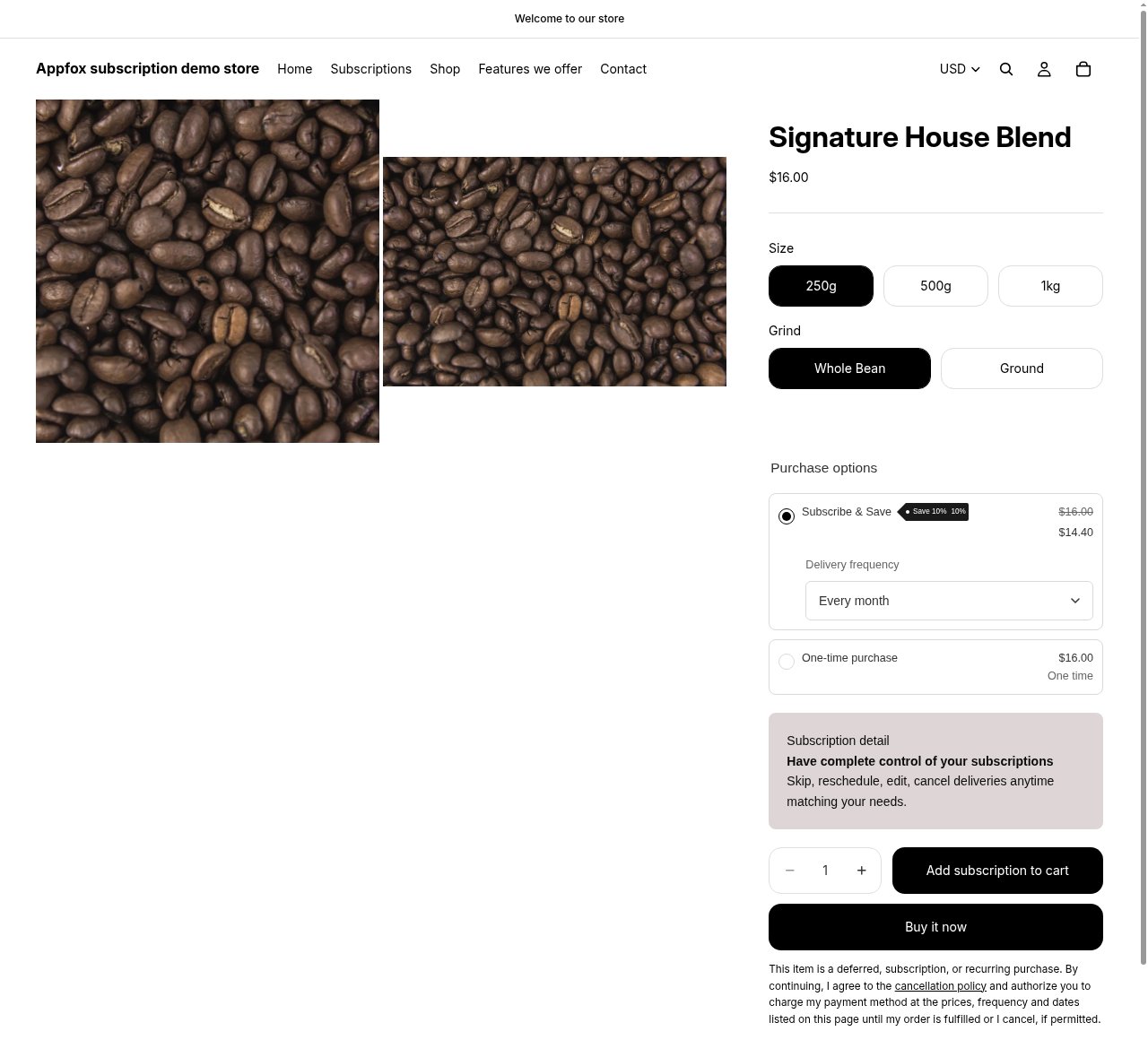 The widget appears on product pages and displays your subscription options, discounts, and delivery frequencies. Customers can choose between subscription and one-time purchase.
You'll see new subscriptions appear in the **Subscriptions** section of the dashboard as orders come in.
Need help? Contact us at [support@getappfox.com](mailto:support@getappfox.com).
The widget appears on product pages and displays your subscription options, discounts, and delivery frequencies. Customers can choose between subscription and one-time purchase.
You'll see new subscriptions appear in the **Subscriptions** section of the dashboard as orders come in.
Need help? Contact us at [support@getappfox.com](mailto:support@getappfox.com).