> ## Documentation Index
> Fetch the complete documentation index at: https://subscriptions-docs.getappfox.com/llms.txt
> Use this file to discover all available pages before exploring further.
# Email notifications
> Configure and customize subscription emails
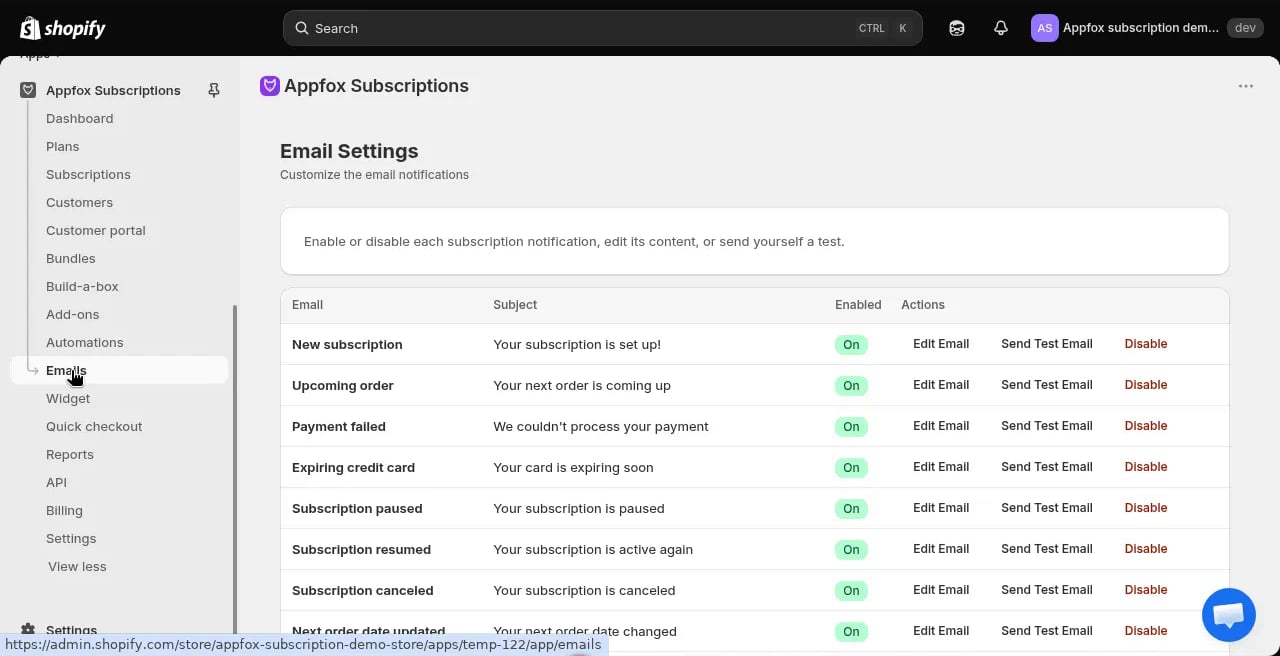
Appfox Subscriptions sends automated email notifications to customers for subscription events. You can enable, disable, and customize the content of each notification.
 ## Email types
The app includes 14 notification templates:
### Order and billing emails
* **New subscription**: Sent when a customer creates a subscription
* **Upcoming order**: Reminds customers that an order is scheduled soon
* **Payment failed**: Notifies customers when a billing attempt fails
* **Subscription paused**: Confirms that the subscription is paused
* **Subscription resumed**: Confirms that the subscription is active again
* **Subscription cancelled**: Sent when a subscription is cancelled
* **Next order date updated**: Notifies customers when the next billing date changes
### Product and plan emails
* **Product added**: Sent when a product is added to the subscription
* **Product removed**: Sent when a product is removed from the subscription
* **Price change**: Notifies customers when the subscription price changes
* **Shipping address updated**: Confirms changes to the shipping address
### Frequency and payment emails
* **Order frequency updated**: Sent when the billing frequency changes
* **Payment method updated**: Confirms when the customer updates their payment method
### Stock notifications
* **Out of stock**: Alerts customers when a product in their subscription is out of stock
## Configure email settings
Click **Emails** in the app navigation.
Toggle the switch next to each email type to enable or disable it. Disabled emails are not sent to customers.
Click **Edit Email** next to any template to customize the subject line and body content.
You can use variables to insert customer-specific information like name, order details, and subscription information.
Click **Send Test Email** to preview how the email looks. Test emails are sent to the email address configured in your shop settings.
## Customize email templates
Each email template includes:
* **Subject line**: The email subject. Use variables like `{{customer_name}}` to personalize.
* **Body content**: The email message. You can include HTML formatting and variables.
Common variables you can use:
* `{{customer_name}}` — The customer's first name
* `{{subscription_id}}` — The subscription contract ID
* `{{next_billing_date}}` — The date of the next billing cycle
* `{{order_total}}` — The total amount of the order
* `{{product_names}}` — A list of products in the subscription
Refer to the in-app help text for a complete list of available variables.
## Email delivery
Emails are sent automatically when the triggering event occurs. For example, the **Upcoming order** email sends a few days before the billing date.
You can adjust the timing for some emails in the email settings.
Emails are sent from a no-reply address. Customers cannot reply to subscription notification emails. Provide a support contact in your email templates if customers need help.
## Klaviyo integration
If you use Klaviyo for marketing automation, Appfox Subscriptions can emit subscription events directly to your Klaviyo account. Configure your Klaviyo public API key in the integration settings to enable event tracking.
### Available Klaviyo events
The following events are sent to Klaviyo when they occur:
| Event Name | Triggered When |
| ----------------------------------- | --------------------------------------------------------------------- |
| **Subscription Created** | A customer creates a new subscription |
| **Subscription Updated** | A subscription is modified (products, frequency, etc.) |
| **Subscription Paused** | A customer or merchant pauses a subscription |
| **Subscription Resumed** | A paused subscription is reactivated |
| **Subscription Cancelled** | A subscription is permanently cancelled |
| **Subscription Payment Successful** | A billing attempt succeeds |
| **Subscription Payment Failed** | A billing attempt fails |
| **Subscription Renewal Upcoming** | Sent before the next billing date (same timing as the email reminder) |
| **Subscription Card Expiring** | Sent when a customer's payment card is expiring soon |
Each event includes customer information (email, name), subscription details (contract ID, order name, amount, currency), and event-specific data like failure reasons or next billing dates.
Use Klaviyo events to build targeted campaigns. For example, send a win-back flow to customers whose subscriptions were cancelled, or offer loyalty rewards to customers with successful long-term subscriptions.
Test your email templates before going live. Send test emails to yourself and check that variables populate correctly.
## Email types
The app includes 14 notification templates:
### Order and billing emails
* **New subscription**: Sent when a customer creates a subscription
* **Upcoming order**: Reminds customers that an order is scheduled soon
* **Payment failed**: Notifies customers when a billing attempt fails
* **Subscription paused**: Confirms that the subscription is paused
* **Subscription resumed**: Confirms that the subscription is active again
* **Subscription cancelled**: Sent when a subscription is cancelled
* **Next order date updated**: Notifies customers when the next billing date changes
### Product and plan emails
* **Product added**: Sent when a product is added to the subscription
* **Product removed**: Sent when a product is removed from the subscription
* **Price change**: Notifies customers when the subscription price changes
* **Shipping address updated**: Confirms changes to the shipping address
### Frequency and payment emails
* **Order frequency updated**: Sent when the billing frequency changes
* **Payment method updated**: Confirms when the customer updates their payment method
### Stock notifications
* **Out of stock**: Alerts customers when a product in their subscription is out of stock
## Configure email settings
Click **Emails** in the app navigation.
Toggle the switch next to each email type to enable or disable it. Disabled emails are not sent to customers.
Click **Edit Email** next to any template to customize the subject line and body content.
You can use variables to insert customer-specific information like name, order details, and subscription information.
Click **Send Test Email** to preview how the email looks. Test emails are sent to the email address configured in your shop settings.
## Customize email templates
Each email template includes:
* **Subject line**: The email subject. Use variables like `{{customer_name}}` to personalize.
* **Body content**: The email message. You can include HTML formatting and variables.
Common variables you can use:
* `{{customer_name}}` — The customer's first name
* `{{subscription_id}}` — The subscription contract ID
* `{{next_billing_date}}` — The date of the next billing cycle
* `{{order_total}}` — The total amount of the order
* `{{product_names}}` — A list of products in the subscription
Refer to the in-app help text for a complete list of available variables.
## Email delivery
Emails are sent automatically when the triggering event occurs. For example, the **Upcoming order** email sends a few days before the billing date.
You can adjust the timing for some emails in the email settings.
Emails are sent from a no-reply address. Customers cannot reply to subscription notification emails. Provide a support contact in your email templates if customers need help.
## Klaviyo integration
If you use Klaviyo for marketing automation, Appfox Subscriptions can emit subscription events directly to your Klaviyo account. Configure your Klaviyo public API key in the integration settings to enable event tracking.
### Available Klaviyo events
The following events are sent to Klaviyo when they occur:
| Event Name | Triggered When |
| ----------------------------------- | --------------------------------------------------------------------- |
| **Subscription Created** | A customer creates a new subscription |
| **Subscription Updated** | A subscription is modified (products, frequency, etc.) |
| **Subscription Paused** | A customer or merchant pauses a subscription |
| **Subscription Resumed** | A paused subscription is reactivated |
| **Subscription Cancelled** | A subscription is permanently cancelled |
| **Subscription Payment Successful** | A billing attempt succeeds |
| **Subscription Payment Failed** | A billing attempt fails |
| **Subscription Renewal Upcoming** | Sent before the next billing date (same timing as the email reminder) |
| **Subscription Card Expiring** | Sent when a customer's payment card is expiring soon |
Each event includes customer information (email, name), subscription details (contract ID, order name, amount, currency), and event-specific data like failure reasons or next billing dates.
Use Klaviyo events to build targeted campaigns. For example, send a win-back flow to customers whose subscriptions were cancelled, or offer loyalty rewards to customers with successful long-term subscriptions.
Test your email templates before going live. Send test emails to yourself and check that variables populate correctly.