> ## Documentation Index
> Fetch the complete documentation index at: https://subscriptions-docs.getappfox.com/llms.txt
> Use this file to discover all available pages before exploring further.
# Add-ons
> Configure subscription checkout upsells
Add-ons let you offer complementary products during subscription checkout. Customers can add these products to their recurring orders for additional revenue per subscription.
 ## What are add-ons?
Add-ons are products that customers can add to their subscription at checkout. They appear as optional upsells when a customer is setting up a subscription.
For example, if a customer subscribes to coffee beans, you might offer filters or a coffee mug as add-ons.
Add-ons are billed on the same schedule as the main subscription. If the customer subscribes monthly, the add-on is also charged monthly.
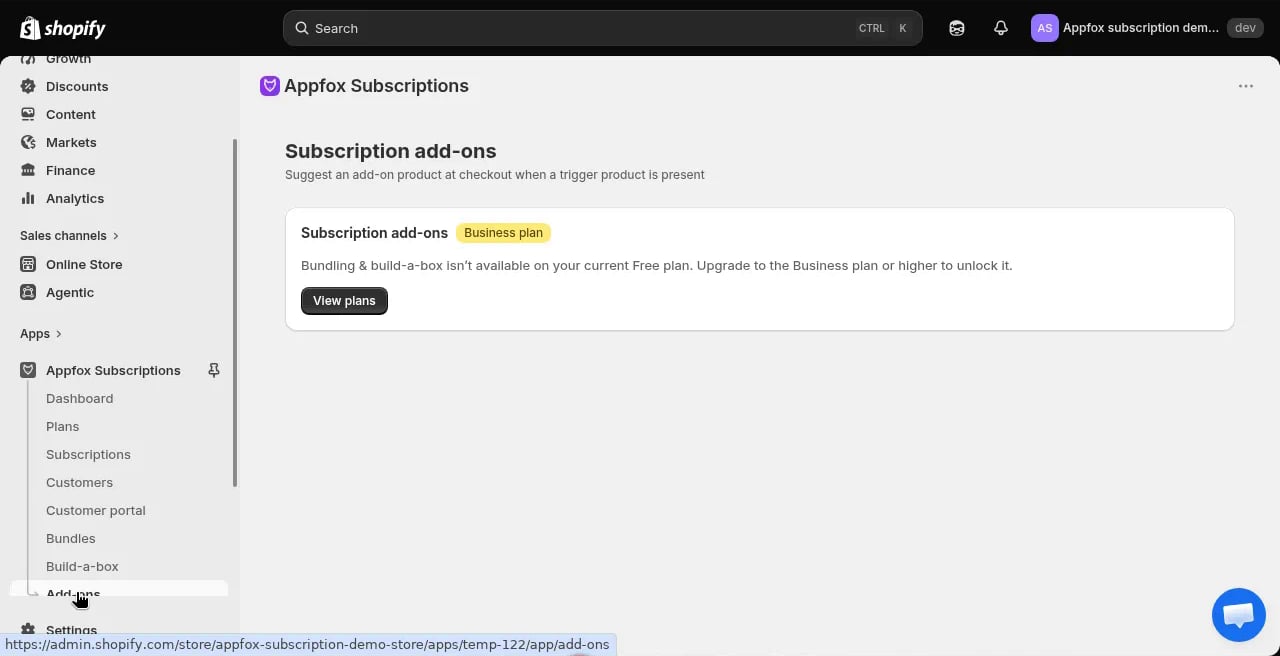
## Business plan required
Add-ons are available on the Business plan or higher. Upgrade your plan to unlock this feature.
## Configure add-ons
Go to **Plan & billing** and choose the Business plan or higher.
Click **Add-ons** in the app navigation, then click **Configure**.
Choose which products to offer as add-ons. These products appear as upsell options during subscription checkout.
Configure which add-ons appear for which subscription plans. You can show specific add-ons only when customers subscribe to certain products.
For example, show coffee filters only when customers subscribe to coffee beans.
Click **Save** to activate the add-ons. They will appear in the subscription checkout flow immediately.
## How add-ons work
When a customer creates a subscription, the checkout flow shows available add-ons. The customer can select zero, one, or multiple add-ons to include in their recurring orders.
Add-ons are billed at the same frequency as the main subscription. If the subscription is paused or cancelled, the add-ons are also paused or cancelled.
Customers can add or remove add-ons from their subscriptions at any time through the customer portal.
Add-ons apply to the entire subscription. If a customer has multiple products in their subscription, the add-on is charged once per billing cycle, not once per product.
Choose add-ons that complement your subscription products. The best add-ons are items customers use alongside the main product on the same schedule.
## What are add-ons?
Add-ons are products that customers can add to their subscription at checkout. They appear as optional upsells when a customer is setting up a subscription.
For example, if a customer subscribes to coffee beans, you might offer filters or a coffee mug as add-ons.
Add-ons are billed on the same schedule as the main subscription. If the customer subscribes monthly, the add-on is also charged monthly.
## Business plan required
Add-ons are available on the Business plan or higher. Upgrade your plan to unlock this feature.
## Configure add-ons
Go to **Plan & billing** and choose the Business plan or higher.
Click **Add-ons** in the app navigation, then click **Configure**.
Choose which products to offer as add-ons. These products appear as upsell options during subscription checkout.
Configure which add-ons appear for which subscription plans. You can show specific add-ons only when customers subscribe to certain products.
For example, show coffee filters only when customers subscribe to coffee beans.
Click **Save** to activate the add-ons. They will appear in the subscription checkout flow immediately.
## How add-ons work
When a customer creates a subscription, the checkout flow shows available add-ons. The customer can select zero, one, or multiple add-ons to include in their recurring orders.
Add-ons are billed at the same frequency as the main subscription. If the subscription is paused or cancelled, the add-ons are also paused or cancelled.
Customers can add or remove add-ons from their subscriptions at any time through the customer portal.
Add-ons apply to the entire subscription. If a customer has multiple products in their subscription, the add-on is charged once per billing cycle, not once per product.
Choose add-ons that complement your subscription products. The best add-ons are items customers use alongside the main product on the same schedule.